Sales and getting paid
Updated November 5, 2026Buyers pay in Telegram Stars. The Stars go to your own bot, not to CreatorInbox, and you withdraw them through Telegram’s official flow.
Where the money goes
- Every payment lands on your bot’s Stars balance. CreatorInbox never holds, withdraws or converts your Stars.
- The balance shows in the app header (on wide screens) and on the Sales page.
- New Stars can take up to 21 days to become withdrawable. Telegram sets this period and can change it.
Read the Sales page
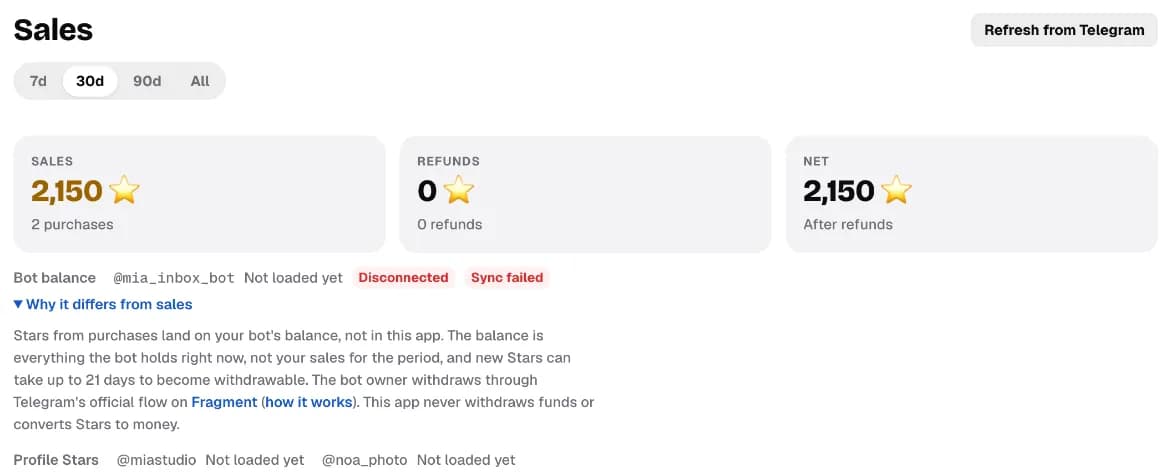
Sales and the bot balance won’t match: the balance is everything the bot holds right now, while sales count the period you picked. Tap Why it differs from sales for the short version.
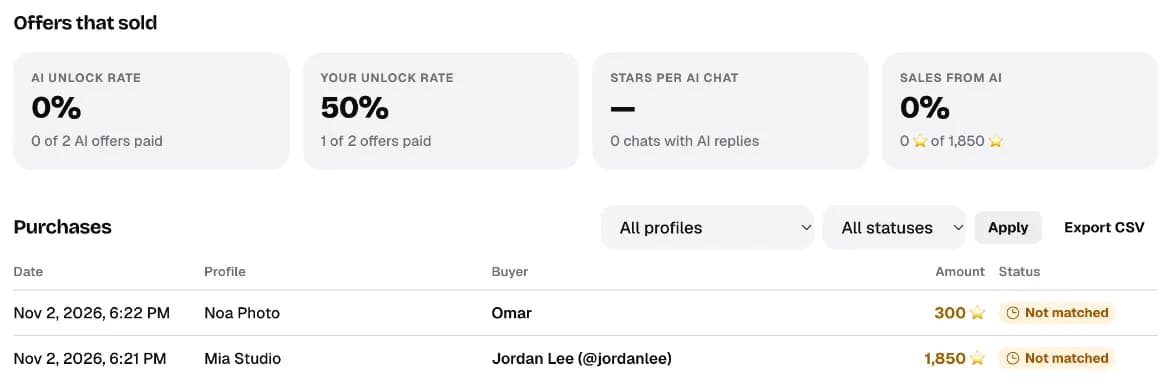
Offers that sold compares AI offers with yours. Not matched on a purchase means a payment arrived that the app couldn’t link to an offer; the Stars are still on your bot.
What you’ll seeTotals for the period you pick (7d, 30d, 90d, All), then offers that sold and every purchase.
If something’s wrongThe bot balance says Not loaded yet or Sync failed: the bot is disconnected or Telegram didn’t answer. Fix the bot in Accounts, then tap Refresh from Telegram.
Step 1: Withdraw your Stars
- Wait until the Stars are withdrawable (up to 21 days after each sale).
- As the bot’s owner, start a withdrawal in Telegram. It opens Fragment, Telegram’s official platform for this.
- Follow Fragment’s steps. Telegram sets the rate, the minimum amount and the rules, and they change from time to time.
To see what a price is worth, use the Telegram Stars calculator. The full walkthrough is in Telegram Stars for creators.
Step 2: Refund a buyer
In Sales, open the purchase and tap Refund Stars. The app asks you to confirm first. Telegram returns the full amount to the buyer.
What you’ll seeThe purchase shows Refunded and the Stars go back to the buyer.
Step 3: Export your sales
In Purchases, pick a profile and status if you want, then tap Export CSV. The file has the date, profile, buyer, items, Stars, who made the sale (you, an AI draft or Autopilot), status and Telegram’s charge ID.
Telegram sets the Star value, the holding period and the withdrawal rules, and can change them. Check Telegram’s own pages before planning around a number.
Step by step, with the video walkthrough: How to accept Telegram Stars payments.