Get started
Updated November 5, 2026About 5 minutes. You make your own bot, add it to your Telegram profile, and messages start arriving in your inbox. The app’s Setup guide has the same steps in four screens.
What you need
- Your Telegram account (the profile buyers write to). You don’t need Telegram Premium: Telegram dropped that requirement in May 2026.
- A second Telegram account, or a friend, to send a test message. Messages you send to yourself don’t count.
- The Telegram app on your phone or computer, and CreatorInbox open in a browser.
In the app, the Setup guide walks you through the same four steps. Until you finish, a bar under the header shows how far you are and what to do next. Tap Continue to jump back in.

Step 1: Create your bot in @BotFather
- In Telegram, open @BotFather and send
/newbot. - Pick a name (buyers won’t see it) and a username that ends in bot, like
mia_inbox_bot. - Copy the token BotFather sends.
What you’ll seeBotFather replies with a token: a long line like 7731…:AAH…. Keep it private, it controls your bot.
If something’s wrongThe username is taken: try another one, it must end in bot. Lost the token? In @BotFather send /mybots → your bot → API Token.
Step 2: Turn on Secretary Mode
Still in @BotFather:
- Send
/mybotsand pick your bot. - Tap Bot Settings → Secretary Mode → Turn on.
Older guides call this “Business Mode”. It’s the same setting.
What you’ll seeBotFather confirms the change. Without it, Telegram won’t let your profile add the bot.
If something’s wrongIf you skip this, CreatorInbox says “Secretary Mode is off for this bot” when you paste the token. Turn it on, then paste again.
Step 3: Paste the token in CreatorInbox
Open the app’s Setup guide (step 1, Create your bot), paste the token in Bot token and connect.
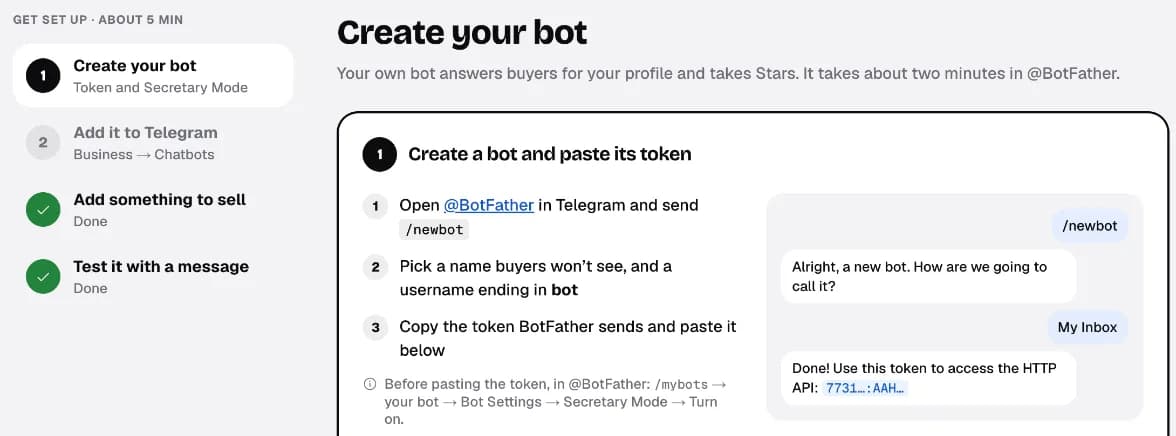
What you’ll seeThe bot shows as connected and step 1 gets a green check. One bot works for all your profiles.
If something’s wrong“Token didn’t work”: copy the whole token, including the part before the colon. “Already connected to another account”: create a new bot for this account.
Step 4: Add the bot to your Telegram profile
Sign in to Telegram as the profile buyers write to.
- Open Settings → Chat Automation. On older Telegram versions it’s Settings → Telegram Business → Chatbots.
- Enter your bot’s username and select it.
- Choose All 1-to-1 chats and turn on Reply to messages.
Buyers keep writing to you as usual and see your replies from your profile. Have more than one profile? Repeat this step in each one with the same bot. Chats from before you connected aren’t imported.
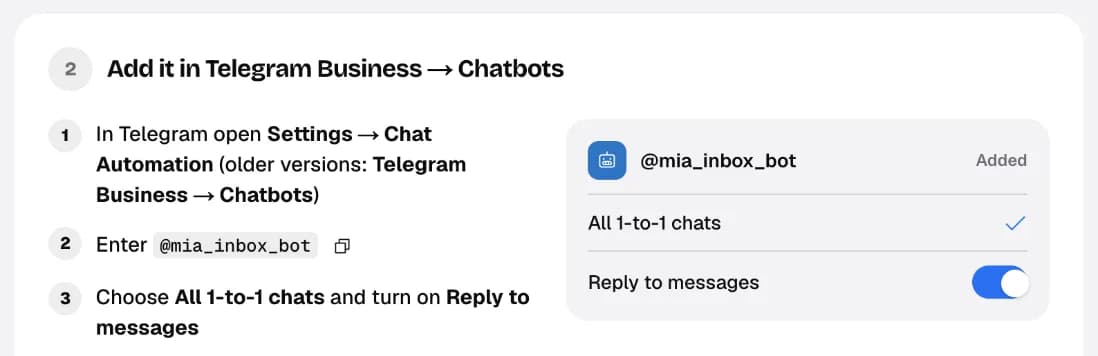
What you’ll seeWithin a few seconds the setup guide says Connected with your profile’s name. You’ll find the profile under Accounts → Profiles.
If something’s wrong“Almost there: the bot can read but not reply” means Reply to messages is off. Turn it on in the same Telegram screen, then tap Check again.
Step 5: Add something to sell (optional)
Upload photos, videos or any file in Content. You can skip this and come back later; replying works without it. See Sell files and paid offers.
What you’ll seeYour files show in Content with their price in Stars.
Step 6: Send a test message
From a second Telegram account, write a message to your profile. Then open the chat in CreatorInbox and reply.
What you’ll seeThe message shows in your inbox, and the setup bar disappears. Reply from the app: the buyer sees it from your profile.
If something’s wrongNothing arrives? Write from a different account, not to yourself. Check that the profile is listed in Accounts and the bot isn’t marked Token revoked. More fixes in Fix common problems.
Next: find your way around the inbox, or let the AI draft replies.